





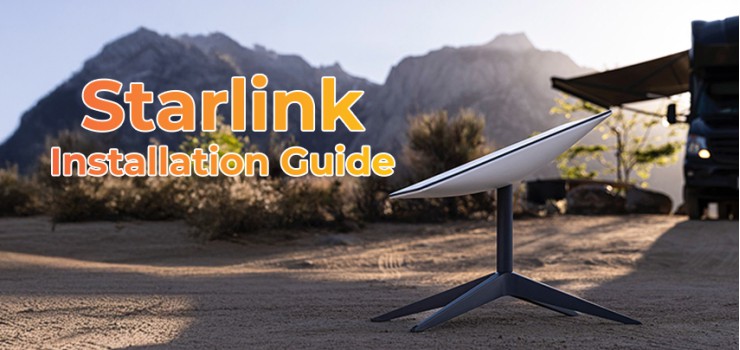
The Bangladesh government has watered down the mass anticipation over Starlink’s availability in the country. After a contract signed in May 2025 between the Bangladesh Telecommunication Regulatory Commission (BTRC) and SpaceX, Starlink is now up for grabs. Unlike regular ISPs, Starlink works through interconnected satellites to distribute the internet across the world.
Additionally, the system requires users to make a connection with a dish antenna from the ground. Once you have your Starlink Kit ordered to your doorstep, from unpacking, mounting, to setting up, there are several steps you must follow to install it. For people worrying over the question, “How do I set up Starlink in Bangladesh?”, here is a detailed Starlink installation guide BD.
What’s in the Starlink Kit?
Like any satellite data transmission system, Starlink needs ground-level receivers to complete the transaction cycle. So, it requires users to get a set of interconnectible devices, including a Starlink dish antenna, router, power supply, and cables, and install them as the ground receiver. Together, they come in a package called the Starlink Kit.
Currently, Starlink Kits come in two versions: Gen 2 and Gen 3. Both share mostly similar and a few distinct features. Such as:
Dish antennas are built on phased-array technology
Easy Starlink dish setup process
150 Mbps speed in Gen 2, superseded by Gen 3’s 200 Mbps
Mounting system that covers both permanent and portable setups
Step-by-Step Starlink Installation Process
The residential and mini versions of the Starlink Kit have separate installation processes. This section will cover the know-how of the setup requirements for both versions. Let’s start:
How to Install the Starlink Residential Kit?
The Residential Kit unboxes a dish antenna, a Gen 3 WiFi router, a mounting tripod to support the dish, cables, and a power supply. A thoughtful installation should start with the selection of a suitable mounting location.
Step 1: Mounting Spot Selection
The optimal placement for the antenna will be an open space with a clear sky view. The water and dust-withstanding design of the kit adds some freedom to the choice, nullifying the need for a cover or shade. Generally, you should be looking for -
Areas with a clear view of the sky
High grounds or rooftops
Flat surface for firm holds
A place spacious enough for a multi-device setup
The official Starlink App, which is a free download both in the Play Store and App Store, comes with an obstruction-scanning widget. It lets users scan the visible area of the sky from a particular spot and suggests whether that position is a suitable mount or not.
Step 2: Dish Placement for Starlink
The Starlink Kit comes packed with a wedge mount that allows screw clamping for a permanent dish hold. Special surfaces, like an RV wall or a boat mast, require additional hardware. Usually, a thread locker, mechanical locking washers, and nuts are used. If the boxed cable comes short, order a longer one from the store. To place the dish:
Make sure the ground structure is not brittle
Choose a solid and strong surface for vehicles
The screws must be long enough to pierce through the mount’s holes
Adjust the dish so that the cable can access it from its lower end
Step 3: Power Supply Placement
The power supply comes with its own mount module and wires. The optimal orientation for the module is face down. If that’s something impossible to achieve, a side-faced positioning will also do. The default length of the provided wire is 8 meters, while a 25-meter alternative is available in the Starlink store. Rationally, a mount placed close to the dish will allow for more organized cable management.
Step 4: Starlink Router Connection
Either the Starlink router or a third-party option, the Starlink Residential Kit covers instruments for both connection types. You will find a Starlink Router cable and a regular Ethernet adapter in the package to connect the dish to the router.
Step 5: Power Connection
This is the last step of hardware setup for your Starlink internet system. At this step, the power supply and the router need to be connected to a power source. The recommended setup welcomes the use of a UPS intermediary for protecting the router from irregular power surges, keeping a maintained healthy connection, and providing backup during an outage.
Step 6: WiFi Setup Using Starlink
Easiest of all steps, setting up the WiFi connection and configuring it is just a matter of clicks on the official Starlink App. If that option is off-limits, you can still connect your mobile or laptop using the default WiFi setting.
Step 7: Cable Management
Avoid situations where the cable connecting the router to the dish stretches while the antenna adjusts itself toward the satellite. For wall or vehicle mounts, clamp all the wires to the surface so that they don’t hang loosely. In cases where all the devices are placed together, using a cable organizer will keep the arrangement neat.
How to Install the Starlink Mini Kit?
The Mini Kit differs in provided items and installation process from the Standard Kit. Instead of a separate antenna and router, the Mini Kit offers a combined version of them, where the router is integrated into the antenna. Among other components, a pipe adapter and flat mount, a DC power cable, a Starlink Plug, and a Power Supply feature a slightly changed design. For Starlink Mini Kit buyers, here is the process of how to install Starlink in Bangladesh.
Step 1: Finding a Setup Location
The first step doesn’t fall far in location selection strategies from what has been described for the regular kit. If simplified, the process follows the path below:
Downloading the Starlink App
Scanning the sky for an obstruction-free location
Considering setup scopes, power source access, and cable management
Using a pole if a suitable surface-level location is not available
Step 2: Mounting the Dish
Dish mounting with the Mini Kit is even more dynamic, as there are extra features for pole mounting.
Step 3: Making Connections
Unlike the Standard Kit, there is only one cable that users have to mind during the Mini Kit installation. It’s a 50-foot power cable with a 120-volt adapter. A careful user must attach it to the dish through the opening of the kickstand. It will ensure hassle-free head movement for the dish. The cable must be firmly inserted into the port so that its weather-proofing design can be the most effective.
Step 4: Configuring the WiFi
It’s simple. A switched-on antenna becomes available for connection instantly after the power supply plug-in. Now, get a device to access the STARLINK WiFi. For advanced configuration, download the mobile app, and tap on the settings tab.
Configuring Starlink Router & WiFi Settings
The configuration processes for Starlink routers vary slightly for different generations. However, they share almost similar hardware features. Let’s have a look:
Regular Features of Gen 3 Starlink Router
WiFi: Maintains the IEEE 802.11 standard, the global model for WiFi sharing devices for better, restriction-free connectivity.
Bandwidth: All versions use the 2.4GHz and 5GHz frequency bands, except the Tri-band version has an extra 6GHz band. Users can configure them for auto or manual switching.
Resistance Rating: Starlink ensures an IP56 rating for its routers, providing water resistance against drizzles and splashes
Lights: The lights arranged on the router are to indicate key connectivity status. Such as:
Blinking White Light: It says the device is preparing for a connection. A failed connection attempt will make the light go red.
White Light: Once the connection is made, the light will stop blinking and turn off after an hour.
Red Light: A red light is the indication for an inactive connection.
Violet Light: The router has gone to bypass mode, and it requires a factory reset before becoming workable.
Router WiFi Configuration Process
Starlink router lets users configure the WiFi connection through a rather easy process. They can access it from a mobile, laptop, or desktop with the help of an additional connection chip. On the available WiFi network list, it will show the default name, STARLINK. For advanced modifications, users have to:
Download the Starlink App
Get to the Router option under the Settings tab in the App
Make any necessary changes to the name, and set a password
Check the connection status on the account dashboard of the app
Troubleshooting Common Installation Issues
A working system will rarely make trouble as long as the dish and satellite have an obstruction-free connection. Too often, loose wires due to heavy wind or stretch may cause connection issues. But these are easy to resolve. In such cases, worrying over “Do I need a technician to install Starlink?” would be pointless. All you need to do is check through all the ports and connections, unplug and replug them.
To make your Starlink experience more convenient:
Keep an eye on the service status on the account dashboard
Check the power lights on the power supply for warning indications
Use small brushes with soft bristles to sweep dust out of the ports
Make sure that all the devices on the network system are powered on
Configure any third-party items, like a router, to make them Starlink compatible
Raise support tickets in the Starlink App for complicated fixes
EERNA Expert Installation via 1000fix
At EERNA, your Starlink Kit purchase is backed by expert installation support, maintenance, and configuration guidance, and all-inclusive after-sales services for all types of connection and hardware issues. Our proud Starlink installation service BD matches official Starlink support teams in efficacy and speed. So, you can indulge in an experience that no other platform can promise. Reach out to us if you want:
All options are open at your hands while choosing the most suitable one for you
Consultations over your aims and needs, and the best model to cover them
Fastest shipping trackable via support agents and order numbers
Assistance in installation and maintenance
Extended






Comments
There are no comments for this Article.