




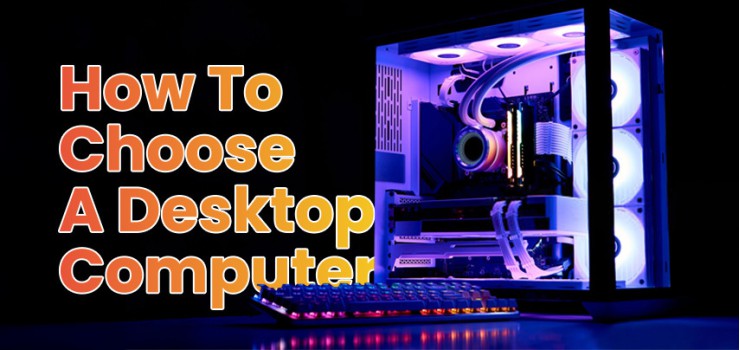
Are you scared of buying a desktop computer because of words like "RAM," "CPU," and "GPU"?
Well, you must not be alone!
Many people in Bangladesh feel confused when looking for a new computer. It feels like everyone is speaking a different language!
But buying a powerful, genuine desktop PC does not have to be difficult.
Assume it is like buying a car or hiring a hardworking assistant. Once you know what job the assistant needs to do, finding the right one becomes simple.
And we are going to make it simple for you.
We will walk you through a desktop computer buying guide, covering everything you need to know and explaining confusing terms in easy-to-understand ways so that you can choose the perfect PC for your home, office, or gaming needs here in Dhaka or any other city in the heart of Bangladesh.
Let’s Get Started
Whether you are a student doing online classes, a professional working from home, or a gamer connecting with friends, your PC is your central workstation.
But if you have zero or minimal knowledge about hardware, where do you start?
The truth is, the market is full of choices, which is why learning how to choose a desktop computer correctly will save you time and money.
Our goal is to make you feel confident enough to walk into any major tech shop and know exactly what you are looking for.
What Should You Consider Before Buying a Desktop PC?
Before you even look at a single price tag, you need to decide what the computer is for. This is one of the most important things to consider before buying a desktop PC. If you buy a small motorcycle for carrying heavy bricks, it will break. The same is true for computers.
How Do I Define My Needs for a New Computer?
To decide what to look for when buying a computer, just ask yourself three simple questions:
Basic Use (Internet, Email, Movies): If you just need to browse the internet, watch YouTube, or type documents, your computer can be very simple. Consider it as a small scooter.
Productivity (Office, School, Coding): If you need to run heavy programs like Excel, PowerPoint, or basic photo editing software, you need a balanced device. It is like a family car.
Advanced Use (Gaming, Video Editing, 3D Design): If you are running the latest PC games, editing 4K videos, or designing complex 3D models, you need a high-performance engine. It is like a powerful sports car.
Knowing it upfront directly answers the question, and that is,
What are the most important specs to consider when buying a desktop PC?
For basic use, focus on enough storage and a reliable processor. For advanced use, focus on the Graphics Card and CPU. The simple classification is the most helpful PC buying tip you can follow!
How Much Should I Budget for a New Desktop PC?
When budgeting for a new computer, prices in Bangladesh can vary widely. Generally, desktop PCs fall into three budget categories:
Entry Level (BDT 25,000 to 45,000): You will get a simple device perfect for basic tasks and light schoolwork. It will have an older-generation processor like Intel Pentium Gold G6400 10th gen Coffee Lake Processor or AMD Ryzen 5 1600X Processor and minimal RAM, like Adata 8GB DDR4 2400 BUS Desktop Ram or Netac Basic 8GB DDR4 2666MHZ Desktop RAM.
Mid Range (BDT 45,000 to 80,000): It is the sweet spot for students and home professionals. You get fast performance, good storage, and enough power for most office software and light photo editing. The ideal processor for such a configuration could be Intel Pentium Gold G7400 Alder Lake Processor or AMD Ryzen 5 3400G Processor with Radeon RX Vega 11 Graphics.
High End (BDT 80,000 and up): These devices are for serious gamers, video editors, and professionals who cannot afford delays. They feature dedicated graphics cards like Gigabyte GeForce RTX 5080 GAMING OC 16GB GDDR7 Graphics Card and the fastest components available.
Remember, a higher budget for a new computer usually means the PC will last longer and handle future software updates better.
What Hardware Specs Should I Look for When Buying a Computer?
Understanding the main components of computer hardware is essential. Consider your desktop PC as a team of workers inside a box. Each worker has a specific job.

The CPU (Central Processing Unit) is the "brain" of your computer. It does all the thinking and calculating. When learning how to choose a desktop computer, the CPU is the first thing to look at. You usually have two main choices: Intel (Core i3, i5, i7, i9) or AMD (Ryzen 3, 5, 7, 9).
For most users, an Intel Core i5 or AMD Ryzen 5 is the best middle ground. They offer great speed for the price.
i3 / Ryzen 3: Good for basic tasks like browsing and schoolwork.
i5 / Ryzen 5: Excellent for general use, multitasking, and mid-level productivity.
i7 / Ryzen 7 & up: Necessary for heavy tasks like professional video editing and high-performance gaming.
When choosing the right CPU, also look at the "generation" number.
For example, a 14th Gen Intel Core i5 is much faster than a 10th Gen Core i7, even though the i7 sounds more powerful. Always try to buy the latest generation you can afford!
How Much RAM Do I Need for My Daily Tasks or Gaming?
RAM (Random Access Memory) is like your kitchen countertop. It is where the computer stores all your open tabs, running programs, and files. The bigger your countertop, the more things you can keep open at once without making a mess.
How much RAM do I actually need?
Most computers today start with 8GB of RAM. While 8GB is enough for basic browsing and one or two programs, it gets used up very quickly.
8GB RAM: Minimum for basic use, but you will feel it slow down if you open too many browser tabs.
16GB RAM: Recommended standard for nearly everyone. This is enough for fluid multitasking, heavier applications, and most casual gaming. This capacity is vital when learning how much RAM I need for a smooth experience.
32GB RAM & up: Necessary for demanding tasks like running virtual devices, professional content creation, or serious competitive gaming.
If you often have many browser windows open, invest in 16GB of RAM. It is the single best investment for a faster feeling computer.
SSD vs HDD Storage: Which is Best for Speed and Storage?
Storage is where your computer stores your photos, files, programs, and the operating system. Consider it as your computer's filing cabinet.
What is the difference between SSD and HDD storage?
HDD (Hard Disk Drive): A traditional storage device that uses spinning disks (like a record player). It is slower but cheaper, giving you lots of storage space for a low price.
SSD (Solid State Drive): A newer, much faster storage device that uses microchips (like a large pen drive). It loads programs instantly, powers on your computer in seconds, and gives you a much better experience.
The difference in speed is enormous. When comparing SSD vs HDD storage, an SSD can be 10 times faster than an HDD!
Always remember!
Your computer should always have an SSD for the central operating system and programs. You can add a cheaper HDD later for storing large files, such as movies and photos. A 512GB SSD is a good starting point for your main drive.
Do I Need a Dedicated Graphics Card for Gaming or Video Editing?
Yes! You will need a dedicated graphics card for Gaming or video editing, as the Graphics Card (or GPU, Graphics Processing Unit) is the expert at rendering images and creating visuals.
Do I need a dedicated graphics card?
No Dedicated Card (Integrated Graphics): If you are only doing schoolwork, office tasks, and watching standard YouTube videos, you do not need one. The CPU can handle the visuals just fine.
Yes, Dedicated Card (NVIDIA or AMD): If you want to play modern games or your work involves complex visual tasks like 3D modeling, detailed photo editing, or video production, you must have a powerful dedicated graphics card. These cards, like the NVIDIA GeForce RTX series, take the burden of drawing complex graphics away from the main CPU, making everything run smoothly.
A good dedicated GPU is one of the most important best desktop specs for any serious multimedia user.
Are the Motherboard and Power Supply Important Considerations?
Yes! They are. These two parts are the unsung heroes of your PC.
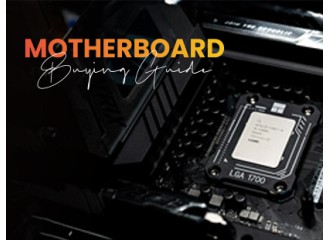
The Motherboard is the "city" of your computer. It is the large circuit board that connects the CPU, RAM, GPU, and all other components together. A good motherboard ensures that all components can communicate quickly.
The Power Supply Unit (PSU) is the "heart." It takes the power from your wall socket and safely delivers the exact voltage needed to every single component.
How important are cooling and the power supply unit (PSU)?
They are extremely important. A cheap, unreliable PSU can fail, damaging or destroying other expensive components like your CPU or GPU.
Similarly, if your computer's cooling system is poor, the CPU and GPU will get too hot, forcing them to run slowly, which completely ruins performance.
Always look for a reputable brand and a quality CPU cooler, and even the seller, for your PSU.
Prebuilt vs Custom PC: Which Buying Option Is Better?
When you finally decide on the specs, you face another big decision: where to get the PC.
Is it better to buy a pre-built desktop or build one myself?
It depends entirely on your desires and requirements. Which Buying Option Is Better? Let’s find out
Prebuilt PC
A computer assembled and tested by a company (such as Dell, HP, or Asus).
Pros: Comes with a full warranty, is ready to use immediately, and is simpler for beginners.
Cons: You sometimes pay extra for the assembly, and the parts used might be generic versions.
Custom PC
It is a computer you design and build yourself (or have a local expert assemble).
Pros: You choose every single part, often saving money and ensuring maximum quality.
Cons: No single warranty for the whole PC, and requires knowledge to build and troubleshoot.
What Size and Form Factor Should My PC Be?
The "form factor" is the physical size and shape of the PC case.
Tower PC: Large, traditional case. These are easy to upgrade, have excellent cooling, and are usually the best for gamers.
Small Form Factor (SFF): Much smaller cases. They save space but can be harder to upgrade and may not cool the powerful components as well.
Choose a standard Tower PC if you plan to upgrade or install a large graphics card.
Are All-in-One PCs a Good Option for Home Use?
All-in-One (AIO) PCs are computers in which all components are built into the back of the monitor.
All in one pc pros and cons:
Pros: Very clean look, takes up very little space, and only needs one cable.
Cons: Tough to upgrade internal components, and cooling is often poor because everything is packed tightly together.
While attractive, AIOs are generally recommended only for simple home offices or reception desks where space is the top priority. For school, gaming, or heavy work, a standard desktop tower is better.
Is Future Upgradability Important for My New Computer?
You might think your new PC is perfect today, but what about two or three years from now? Software gets heavier, and games demand more power.
Can I upgrade my desktop computer later?
It is where future upgradability comes in. A desktop computer is modular, meaning you can swap out parts, unlike most laptops. You can almost always upgrade these parts:
RAM (Easily add more memory).
Storage (Easily add a new SSD or HDD).
Graphics Card (Usually easy, but check the size).
However, upgrading the CPU or motherboard is harder and more expensive. When you buy, look for a motherboard with extra RAM and storage slots. The simple check ensures you can handle tomorrow's demands without buying a whole new device.
What Ports, Connectivity, and Operating System Do I Need?
Do not forget the small details, as they connect your PC to the world!
Regarding ports and connectivity, make sure your PC has enough of the right kind of ports:
USB Ports: Look for both USB Type A (the standard rectangular one) and the newer, faster USB Type C ports for connecting modern phones and devices.
Video Ports: Ensure the PC has the correct video port (HDMI or DisplayPort) to connect to your existing monitor.
Wi Fi: Make sure the desktop has built-in Wi-Fi and Bluetooth if you want to connect wirelessly without extra cables.
Finally, think about your operating system choice. Most PCs come with Microsoft Windows (10 or 11), which is the standard for gaming and productivity.
Mac desktops use the Apple Mac Mini, running macOS, which many creative professionals prefer.
Unless you have a specific need for Mac, Windows 11 is the most compatible and widely supported operating system choice for users in Bangladesh.
Congratulations!
You are now fully equipped with the knowledge of a savvy computer buyer. You have learned how to choose a desktop computer by matching your needs to the right components.
The whole secret is identifying the purpose of your PC first, setting a realistic budget for a new computer, and then choosing the right brain (CPU), countertop (RAM), and filing cabinet (SSD) for the job.
Now, go confidently buy the perfect desktop computer to power your work, studies, and gaming adventures here in Bangladesh!
Frequently Asked Questions (FAQs)
What are the most important specs to consider when buying a desktop PC?
The three most important things to consider before buying a desktop PC are the CPU (Brain), the amount of RAM (Countertop), and the presence of an SSD (Fast Storage). For gamers and video editors, a dedicated graphics card is also essential. Focus your budget on these four areas first.
How much RAM do I actually need?
You should aim for 16GB of RAM. While 8GB is sufficient for light tasks like browsing and schoolwork, 16GB is the modern standard that lets you comfortably multitask, run video calls, and use productivity software without frustrating slowdowns.
Is it better to buy a pre-built desktop or build one myself?
For most first-time buyers and those with minimal knowledge, buying a pre-built desktop is better. It guarantees a full warranty, is tested to work perfectly right out of the box, and simplifies the purchasing process. Building your own only makes sense if you want to save every last penny and are comfortable troubleshooting any problems that arise.
Do I need a dedicated graphics card?
No, you do not need one if your PC is only for internet browsing, school reports, or general office work. Yes, you absolutely need one if you plan to do any modern gaming, professional photo or video editing, or 3D design, as these tasks require a powerful, dedicated graphics card.
What is the difference between SSD and HDD storage?
The difference is speed. An SSD (Solid State Drive) uses flash memory and is extremely fast, loading your operating system and programs in seconds. An HDD (Hard Disk Drive) uses spinning discs, is much slower, but provides a cheaper way to store huge amounts of files (like photos and videos). Always install your operating system on an SSD.
Can I upgrade my desktop computer later?
Yes, almost all desktop computers are designed for future upgradability. You can easily add more RAM, swap out your storage drives (SSD/HDD), or replace the graphics card later on. This flexibility is a major advantage over buying a laptop.
How important are cooling and the power supply unit (PSU)?
Cooling and the PSU are foundational to your PC's health and performance. Without proper cooling, your CPU and GPU will overheat and slow down (a process called thermal throttling). Without a quality PSU, your expensive components are at risk of failure. Never cut corners on these two essential components.



-330x240.webp)

Comments
There are no comments for this Article.