




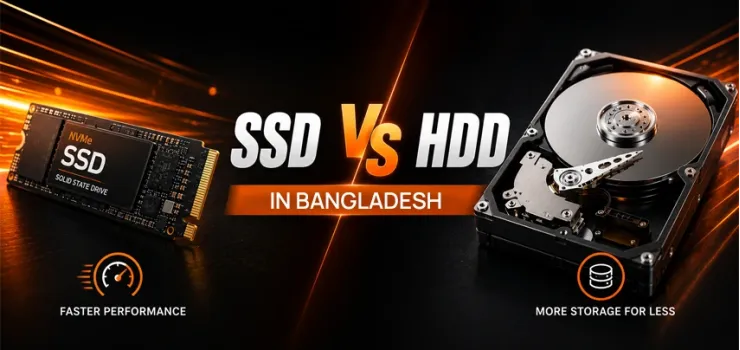
If you are comparing SSD vs. HDD before buying a laptop or upgrading your desktop, the right choice depends on how you actually use your computer every day. A gamer, a video editor, a student, and someone who mainly browses the web or works with Microsoft Office all have very different storage needs.
In 2026, SSDs have become the standard for speed, while HDDs still offer the lowest cost for large storage capacity. That means choosing the right drive is not about buying the newest technology. It is about finding the storage that gives you the best value for your budget and your workload.
This blog compares SSD vs HDD 2026 in a very simple way. You'll know how each storage type works, the difference between a SATA SSD, NVMe SSD, and hard disk drive, what real-world read-write speed looks like, and which option makes the most sense for buyers in Bangladesh.
If you are still deciding, explore EERNA's latest SSDs and hard drives to compare genuine products, live prices, storage capacities, and warranty-backed options as you read through this blog.
SSD vs HDD in One Line
An SSD stores your data on flash memory chips with no moving parts, so it reads and writes files almost instantly. An HDD stores data on spinning magnetic platters with a moving arm, so it is slower but gives you far more storage for the same money.
If speed matters most to you, go SSD. If raw storage capacity at a low cost matters most, go HDD. Most people in Bangladesh end up needing both, and we will show you exactly why later in this blog.
Here is the full picture side by side, so you can see exactly where each drive wins before we go deeper into each factor.
This table is the fast answer. Everything below explains the reasoning behind each row and what it means for your specific use case.
How Each One Actually Works
Understanding the mechanics behind each drive helps you make sense of the price and speed differences you will see throughout this article. It also explains why one type fails differently from the other.
HDD, Spinning Platters, and a Moving Read/Write Arm
A hard disk drive stores data on one or more spinning magnetic platters, similar to a small record player inside a metal case. A read/write arm physically moves across the platter to find and access your files, the same way a record needle moves across a vinyl disc.
This mechanical process is why HDDs are slower and more sensitive to shocks and drops. It is also why HDDs are cheap to manufacture at high capacities, since adding more storage mainly means adding more platters rather than redesigning the whole chip.
SSD, Flash Memory Chips With No Moving Parts
A solid state drive stores your data on flash memory storage chips, the same core technology used in USB pendrives and phone storage, just built for much higher speed and endurance. There is no spinning disk and no moving arm, so data gets read and written almost instantly through electrical signals.
Since nothing physically moves, an SSD handles bumps, drops, and vibration far better than an HDD. This alone makes SSDs the safer pick for laptops that travel with you through Dhaka's daily commute.
SATA SSD vs NVMe SSD, the Distinction Most Buying Guides Skip
Most buying guides treat all SSDs as one category, but the interface behind the SSD changes its speed by ten times or more. A SATA SSD connects through the older SATA interface, capping out around 550 MB/s, which is roughly the same ceiling used by HDDs on the same bus. An NVMe SSD connects through the PCIe interface instead, and a PCIe Gen 4 SSD can hit sequential speeds up to 7,000 MB/s.
Here is the real NVMe vs SSD vs HDD gap laid out side by side, using live examples from EERNA's own catalog.
Want to see the real gap for yourself, put the TwinMOS and Corsair drives above side by side and you will notice the difference in a single large file transfer.
Before buying an NVMe drive, always check your motherboard or laptop supports an M.2 NVMe slot, since some budget laptops only have SATA support.
Speed Comparison: Real Numbers Not Marketing Claims
Marketing pages love throwing around big numbers, so here is what the read-write speed actually looks like for each drive type in daily use. A traditional 7200 RPM HDD typically manages 150 to 200 MB/s of sequential data transfer speed, which is why a large file copy on an HDD takes noticeably longer than the same copy on any SSD.
A SATA SSD delivers around 500 to 550 MB/s, roughly three times faster than an HDD for everyday tasks like opening apps and browsing files. Curious how far NVMe pushes things, take a look at a drive like the Transcend 245S 2TB NVMe PCIe Gen4 SSD, rated up to 5,300 MB/s read and 4,600 MB/s write.
The boot time comparison tells the real story here. A PC with Windows on an HDD often takes 40 to 60 seconds to reach the desktop, while the same setup on an SSD boots in under 15 seconds.
Price Per GB, Where the HDD Still Wins
This is the one area where HDDs remain unbeatable, and it is the main reason they still exist in 2026. Cost per TB on a modern HDD in Bangladesh runs roughly 1,800 to 2,500 BDT, while the same capacity on an SSD costs three to five times more depending on the interface.
Looking at real numbers from EERNA's catalog makes this clear. HDD price in Bangladesh starts low, want proof, the Western Digital 1TB Blue HDD runs around 7,500 BDT, while a comparable 1TB SATA SSD costs roughly 9,000 to 16,000 BDT, and a 1TB NVMe Gen4 SSD can run 20,000 BDT or more, depending on the brand.
SSD price in Bangladesh has dropped a lot over the past few years, but the price per gigabyte gap still grows wider at higher capacities since 4TB and 8TB HDDs remain far cheaper than any SSD at the same size. Once you line up SSD vs HDD price in Bangladesh side by side at the same capacity, the HDD wins on cost every time, and the SSD wins on everything else.
When the Price Gap Actually Matters for a BD Buyer
If you are building a budget PC and need 2TB or more purely for storing files, movies, or old projects, an HDD saves you real money without hurting your daily experience. But if your budget only allows for 256GB to 512GB total storage, an SSD at that size costs about the same as a small HDD anyway, so there is no reason to choose the slower drive.
Suppose you have a 15,000 BDT budget for storage on a new build. You could buy a 500GB SSD for around 4,000 to 7,000 BDT and still have room for a 2TB HDD as bulk storage, giving you speed for your OS and games, plus space for everything else.
SSD vs HDD for Gaming
Gamers ask about storage more than any other group of buyers, and the SSD vs HDD for gaming question comes up in almost every PC build consultation we handle. The good news is that the answer is simple once you separate what storage actually controls from what it does not.
Does Storage Type Affect Frame Rate? No, CPU and GPU Do That
Your frame rate in games comes almost entirely from your CPU and graphics card, not your storage drive. Switching from an HDD to an SSD will not add a single frame per second in a game that is already running smoothly.
This is one of the most common misunderstandings we see from customers upgrading their gaming storage. If your FPS is low, the fix is a better GPU or CPU, not a faster drive.
What Storage Type Actually Improves - Load Times and Texture Streaming
Where storage type makes a real difference is in how fast your game loads and how smoothly textures appear as you move through the world. On an HDD, loading into a match or a new area can take 30 seconds or more, and in open-world games you may notice textures popping in late as the HDD struggles to keep up.
On an SSD, the same load screen often finishes in 5 to 10 seconds, and texture streaming keeps pace with fast movement so you rarely see blurry or missing details.
Competitive gamers also benefit from faster respawns and quicker map loads, which matters in games with strict round timers.
Budget Gaming Setups in Bangladesh: SSD + HDD Combo Strategy
Most Bangladeshi gamers do not need to choose one drive exclusively. The smartest gaming storage setup uses a smaller SSD for your operating system and your most-played titles, paired with a larger HDD for the rest of your game library.
For example, a 500GB NVMe SSD like the Gigabyte G440E500G handles Windows plus two or three active games comfortably, while a 2TB HDD stores everything else you play less often. Ready to put a full rig together around this setup, check out EERNA's gaming PC range, or if you need something you can carry around, browse our gaming laptop collection instead.
SSD vs HDD for Laptops and Everyday Use
For anyone using a laptop for university, office work, or general browsing, the HDD vs SSD for laptop decision affects your daily experience far more than most people expect. This section covers what students and office workers in Bangladesh actually notice day to day.
Boot Time and App Loading - The Difference Students and Office Users Actually Notice Day to Day
A laptop with an HDD can feel sluggish from the moment you press the power button, with a slow boot, a delay before apps respond, and noticeable lag when switching between several Chrome tabs and a Word document. Moving to an SSD removes almost all of this friction, since the operating system and your most-used apps load in a fraction of the time.
If you are still using an old laptop with a spinning HDD, a laptop storage upgrade to an SSD is one of the cheapest ways to make an aging machine feel new again. Need bulk storage for a desktop instead, a drive like the Toshiba P300 1TB HDD works well for that, but for a laptop's main drive, an SSD is the better call every time.
Thinking about a full replacement instead of an upgrade, take a look at EERNA's laptop range and compare specs before you decide.
Durability While Carrying a Laptop Around Dhaka Traffic and Daily Commutes
Storage durability matters more for a laptop than for a desktop, since a laptop gets bumped, dropped, and jostled during daily commutes on Dhaka's roads. An HDD's spinning platter and moving arm are genuinely at risk during sudden movement or a drop, and a hard knock at the wrong moment can cause data loss or a damaged drive.
An SSD has no moving parts, so it survives daily bumps, bag drops, and rough rickshaw rides far better. SSD lifespan is also rated in total data written rather than mechanical wear, so a typical laptop SSD easily lasts several years of normal daily use before you would ever notice a slowdown.
SSD vs HDD for Video Editing and Content Creation
Video editors and content creators put more stress on storage than almost any other type of user, since editing software constantly reads and writes large video files while scrubbing through a timeline.
Why Sustained Read/Write Speed Matters More Than Peak Numbers
Marketing numbers for SSDs usually show peak sequential speed, but video editing depends on sustained performance over long periods, not a short burst. An HDD's sustained speed drops sharply once you are working with multiple 4K streams, causing dropped frames and laggy scrubbing in your editing timeline.
An NVMe SSD holds its speed far more consistently under this kind of sustained load, which is why professional editors avoid HDDs for their active project drive entirely. If you are exporting long 4K projects regularly, the difference between an HDD and an NVMe SSD can mean the gap between a smooth five-minute export and a frustrating twenty-minute wait.
Recommended Setup for BD-Based Creators (OS + Active Project on SSD, Archive on HDD)
The most cost-effective hybrid storage setup for creators keeps your operating system and current active project on a fast NVMe SSD, while older finished projects and raw footage archives move to a large HDD once you are done editing them. This gives you speed where it matters and cheap bulk storage for everything you are not actively touching.
Suppose you are editing a wedding video with 200GB of raw 4K footage. Keep that project on your NVMe SSD until the final export is done, then move the finished files and raw footage to a 4TB or larger HDD for long-term storage.
Want a machine already built around this exact workflow, EERNA's video editing PC range is worth a look before you piece one together yourself.
When an HDD Still Makes Sense in 2026
Despite everything, SSDs do better, HDDs are not obsolete, and there are several situations in 2026 where an HDD remains the smarter and more practical choice.
Bulk and Cold Storage - Old Projects, Media Libraries, Backups
If you are storing years of old photos, finished video projects, or a large movie collection that you rarely open, an HDD gives you far more storage capacity for your money. Data sitting in cold storage does not need NVMe speeds, since you are not actively editing or streaming it in real time.
A 4TB or 8TB HDD costs a fraction of the equivalent SSD capacity, making it the obvious choice for anyone building a personal archive or backup drive.
NAS and Home or Small-Office Servers
Network-attached storage setups are built around HDDs specifically because they prioritize large, affordable capacity that stays online around the clock. Setting one up for your home or small business, drives like the Seagate IronWolf 6TB NAS HDD are built for 24/7 operation and multiple users pulling files at once.
Take a look at EERNA's full NAS storage range if a shared drive setup for your home or office is on your radar.
Surveillance and CCTV DVR Systems
CCTV recording writes continuously around the clock, and this workload needs high total capacity far more than it needs raw speed. Surveillance-rated HDDs are built specifically to handle this constant write cycle reliably for years, which is why you will find them inside nearly every DVR system sold in Bangladesh today.
Budget Builds Where Raw Capacity Matters More Than Speed
If you are building a PC on a tight budget and simply need somewhere to store a large number of files without spending on speed, an HDD stretches your money further. This applies especially to office PCs used mainly for document storage, where boot speed matters less than the sheer amount of space available.
Storage and Bangladesh's Power and Climate Conditions
Local conditions genuinely affect how long a storage drive lasts, and this is a factor most generic buying guides never mention. Frequent voltage fluctuations and load-shedding put real stress on any drive with moving parts, since an HDD mid-write during a sudden power cut faces a higher risk of a head crash or corrupted data than an SSD in the same situation.
Heat and humidity in Bangladesh's climate also affect HDDs more than SSDs, since a spinning drive generates more internal heat and its mechanical tolerances are more sensitive to temperature swings.
Pairing any drive with a reliable UPS protects your data regardless of type, but if you live somewhere with frequent power issues, an SSD's lack of moving parts gives it a real reliability edge over a comparable HDD.
How Much Storage Do You Actually Need?
Storage capacity needs vary enormously depending on what you actually do, so match your purchase to your real usage instead of buying the biggest number you can afford.
128GB to 256GB, Light Users, Browsing, Office Work
This range suits someone who mainly browses the internet, uses Microsoft Office, and does not install many large applications or games. It is tight for anyone doing photo or video work, but plenty for basic daily computing.
512GB, Students, Most Laptops, Moderate Gaming
For most students and general laptop buyers in Bangladesh, 512GB hits the sweet spot between price and usable space. It comfortably fits your operating system, a full suite of apps, university files, and a handful of installed games without constantly deleting files to make room.
1TB and Above, Gamers, Creators, Multi-Project Workflows
Serious gamers with large libraries, content creators juggling multiple projects, and anyone working with 4K footage should plan for 1TB or more. Modern AAA games alone can take up 80 to 150GB each, so a handful of installed titles fills a 512GB drive faster than most people expect.
SSD or HDD, Which One Should You Buy?
For most buyers asking SSD or HDD which is better, the honest answer is that you should buy an SSD as your primary drive and add an HDD only if you genuinely need bulk storage beyond what your SSD budget covers.
An SSD should always run your operating system and your most-used applications, since that single choice affects your daily experience more than almost any other PC component.
If your budget is tight, prioritize a smaller SSD over a larger HDD every time, since the speed difference touches everything you do on the computer.
Ready to add an HDD later, you have options, go with a second internal drive, an external hard drive, or an HDD-SSD enclosure if you want to repurpose an old drive as external storage. Need something fast that fits in your pocket instead, a portable SSD is worth the extra cost over a portable HDD.
Final Verdict
SSD vs HDD is not really a competition anymore, it is a question of matching the right drive to the right job. Choose an SSD for your operating system, your games, your active projects, and anything where speed changes how the computer feels to use.
Choose an HDD for bulk storage, archives, NAS setups, and surveillance recording where capacity matters more than speed.
Most builds in Bangladesh benefit from using both together rather than picking just one. Still unsure how your SSD, HDD, and the rest of your parts fit together, EERNA's PC Builder tool checks compatibility for you before you check out.
Most Common FAQs on SSD vs HDD
1. Are HDDs Obsolete in 2026?
No, HDDs are not obsolete, they have simply moved into a different role than they held a decade ago. They remain the most cost-effective option for bulk storage, NAS setups, surveillance recording, and cold archives where raw capacity matters more than speed.
2. Is an HDD Good for Gaming?
An HDD can technically run games, but it means slower load times and possible texture pop-in in demanding titles. Most gamers get a far better experience installing their operating system and active games on an SSD, then using an HDD only for their larger, less-played game library.
3. Does an SSD Increase FPS?
No, an SSD does not increase your frame rate, since FPS comes from your CPU and graphics card, not your storage drive. What an SSD improves is loading speed and texture streaming, which makes the game feel smoother even though your actual frame rate stays the same.
4. How Long Do HDDs Last?
Most consumer HDDs last three to five years under normal daily use, though many run well beyond that with light use and proper power protection. Backblaze's 2025 drive reliability report, which tracks hundreds of thousands of hard drives in real data centers, recorded an annualized failure rate of 1.36 percent, showing that modern HDDs from major brands remain quite reliable when used properly.
5. Is SSD Better Than HDD for a Laptop?
Yes, an SSD is almost always the better choice for a laptop's main drive. It boots faster, loads apps quicker, and survives daily bumps and drops far better than an HDD, which matters a lot for a device that travels with you every day.
6. Can I Use Both an SSD and an HDD in the Same PC?
Yes, and this is actually the smartest setup for most desktop users. Install your operating system and frequently used apps on the SSD for speed, then use the HDD as a second drive for bulk storage like media files, backups, and older projects.
7. Which Is Cheaper Per Gigabyte, SSD or HDD?
An HDD is significantly cheaper per gigabyte than an SSD, often by three to five times depending on the capacity and interface you compare. This price per gigabyte gap is the main reason HDDs still exist in 2026 despite SSDs being faster in every other way.
8. Do I Need NVMe or Is SATA SSD Enough?
For general use, including office work, browsing, and light gaming, a SATA SSD is more than enough and costs less than NVMe. If you edit video, work with very large files, or want the fastest possible load times in demanding games, an NVMe SSD is worth the extra cost for its much higher sequential and sustained speed.



-330x240.webp)



Comments
There are no comments for this Article.