





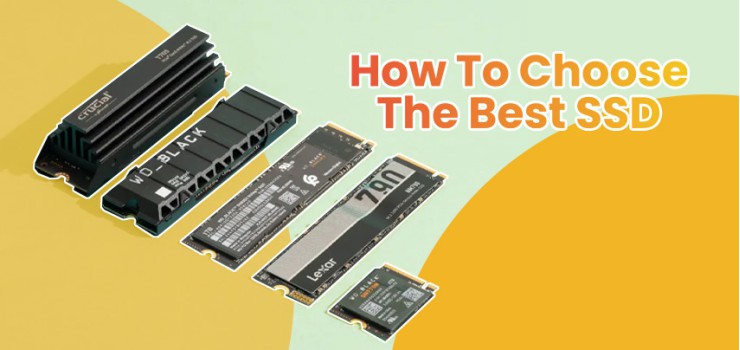
Is your computer running slow? Maybe games take forever to load. Or perhaps your laptop freezes when you open too many tabs.
However, these problems can be fixed with the right SSD.
Most people think they need a new computer. But the truth is different. Your slow PC probably just needs better storage. An SSD upgrade is cheaper than a new laptop. And it makes your old computer feel brand new again.
This SSD buying guide will show you exactly what to buy. No confusing tech words. No wasted money. Just simple steps to pick the perfect drive for your needs.
Why SSDs Beat Old Hard Drives Every Time
SSDs are faster than old hard drives in every way. They make your computer boot in seconds. Plus, they never break from drops.
Old hard drives use spinning disks. A tiny arm moves back and forth to read files. SSDs work differently. They store data on memory chips, like your phone. No moving parts means instant access.
The difference is huge. Windows boots in 10 seconds with an SSD. With a hard drive? Over a minute. Games load 5 times faster. Programs open instantly.
Hard drives work for one thing: storing massive files you rarely use. But for your main drive? Always choose an SSD.
Understanding SSD Types: Shape and Connection
Before you buy internal SSD storage, know what fits your computer. SSDs come in different shapes and connect in different ways.
The shape determines what fits. Most modern PCs use M.2 drives. Older computers need 2.5-inch drives.
The 2.5-inch SATA drive looks like a small brick. It connects with cables and works on almost any PC. Models like the Netac SA500 use this shape.
M.2 drives look like sticks of gum. They plug straight into your motherboard. No cables needed. The number 2280 is the standard size for 99% of computers.
The connection type controls your speed. SATA tops out at 600 MB/s. NVMe reaches over 14,000 MB/s. That's 23 times faster.
Think of SATA as a one-lane road. NVMe is a 16-lane highway.
Speed Grades: PCIe Generations Explained
PCIe generations determine your maximum speed. Each new generation doubles how fast data moves.
PCIe 3.0 (Gen3) reaches about 3,500 MB/s. These cost less and work great for office work and casual gaming.
PCIe 4.0 (Gen4) hits 7,500 MB/s. This is the sweet spot right now. PCIe Gen 4 vs Gen 5 SSD speed shows Gen4 offers the best value. It's also required for PlayStation 5.
PCIe 5.0 (Gen5) achieves speeds of 14,000 MB/s. It's incredibly fast, but it's also expensive and runs very hot. Unless you work professionally in video, you don't need this yet.
Storage Technology Inside
TLC is what most people should buy. QLC works for budget builds.
TLC (Triple-Level Cell) is fast, lasts long, and costs a fair price. Premium drives like the Transcend MTE250H use TLC.
QLC (Quad-Level Cell) makes huge 4TB drives cheaper. But it wears out faster and slows down when full. It's fine for storing games you don't play often.
Do You Need a Drive with Built-in Memory?
For most people, a budget drive works just fine.
DRAM cache makes drives faster and last longer, but modern budget options have a clever trick that closes the gap.
Think of DRAM as a notepad that helps your SSD find files instantly. When you ask for a file, the SSD checks this notepad first to see exactly where that file is stored. Without this notepad, the SSD has to search everywhere, which takes longer.
The presence of a dedicated DRAM chip acts as a high-speed traffic cop for your data, ensuring consistent top-tier speeds and responsiveness, whereas DRAM-less drives trade that consistency for a lower price point.
Modern budget drives use HMB (Host Memory Buffer). They borrow a tiny bit of your computer's RAM. This makes them almost as fast as expensive DRAM drives for gaming and normal use.
How Long Will Your SSD Last?
TBW ratings tell you the drive's lifespan. A 600 TBW drive lets you write 600 terabytes before the warranty ends.
If you use your computer normally, you write about 20 GB per day. At this rate, a 600 TB drive lasts 80+ years. Even gamers downloading huge patches write about 50 GB daily. The same drive still lasts 30+ years.
SSDs slow down when they get too hot. Gen3 and SATA drives rarely have this problem. Gen4 drives benefit from heatsinks, especially in PS5. Gen5 drives absolutely need serious cooling.
Will This SSD Fit Your Computer?
Check three things before buying: the slot type (where the drive plugs in), the key notch (the small cut that ensures correct insertion), and the length (physical size of the drive).
This takes 2 minutes and saves you from buying the wrong drive.
Open your computer case. Look for slots labeled "M.2" on your motherboard. Check your manual for the "key" type. Modern NVMe drives use M-Key.
Laptops are trickier because space is tight. Many laptops can't fit drives with thick heatsinks. Also check the motherboard SSD compatibility for your laptop model. Some only support Gen3 speeds.
Search YouTube for "[your laptop model] SSD upgrade" to find the exact model that fits.
Installing an M.2 SSD takes under 5 minutes. Insert the drive at a 30-degree angle, push it down flat, and screw it in gently.
How Much Storage Do You Actually Need?
Games and files keep getting bigger. Here's what works in 2026.
500GB is too small for most people. Windows takes 60GB. Call of Duty alone needs 200GB.
1TB is the new minimum. It holds Windows, your programs, and 10-15 major games.
2TB is the sweet spot for gamers. You can keep your whole Steam library installed. Is 1TB SSD enough? For 2026, not really, 2TB is better.
Smart Storage Strategy
The hybrid approach saves money. Use a fast 1TB Gen4 NVMe for Windows and main games. Add a more affordable 2TB SATA SSD, such as the Netac SA500, for storage.
Best SSD Picks for 2026
Here are the top drives available in Bangladesh right now.
Check the current SSD price per GB at Eerna.com.bd for these models.
Keep Your SSD Running Fast
Four simple steps maintain peak performance.
Enable TRIM in Windows. Open "Defragment and Optimize Drives" and check if it says "TRIM." Windows 10 and 11 typically enable this feature automatically.
Leave 10-15% free space always. If you fill a 1TB drive completely, it will slow down and wear out faster.
Update firmware when available. Check the manufacturer's website every few months.
Never defragment your SSD. Defragging wastes your drive's lifespan.
Common Asked Questions
Is NVMe really noticeable over SATA for gaming?
In 2026, the answer is increasingly yes. With the adoption of DirectStorage technology in modern games, NVMe drives can load game assets directly to the graphics card, bypassing CPU bottlenecks. This results in loading times that are significantly faster than SATA SSDs. For general web browsing, however, the difference is harder to spot.
Do I need to worry about thermal throttling?
For everyday gaming on a Gen3 or Gen4 drive, usually not, provided your PC case has decent airflow. However, if you are moving massive files regularly or using a Gen5 drive, throttling is a real concern. If your drive throttles, your system might freeze momentarily. A heatsink solves this cheaply.
Can I put a PCIe 4.0 SSD in a PCIe 3.0 slot?
Yes! SSDs are backward compatible. You can plug a super-fast Gen4 drive into an older Gen3 slot. It will work perfectly, but it will be limited to Gen3 speeds (~3,500 MB/s). This is often a smart buy if you plan to upgrade your motherboard later.
What is the lifespan of an SSD?
Modern SSDs are incredibly durable. For a typical user, the drive will likely become obsolete (too small) long before it actually fails. Most decent drives come with 3-5 year warranties, but they often last 10+ years of normal use.
Your Next Move
Stop living with slow load times. Upgrading to the right SSD transforms your computer experience.
If you're using a hard drive, upgrade now. Don't buy a Gen5 drive for a Gen3 motherboard. And buy at least 1TB because games aren't getting smaller.
Ready to make your PC lightning fast? Check out the complete SSD collection at EERNA and find your perfect match today.



-330x240.webp)



Comments
There are no comments for this Article.