





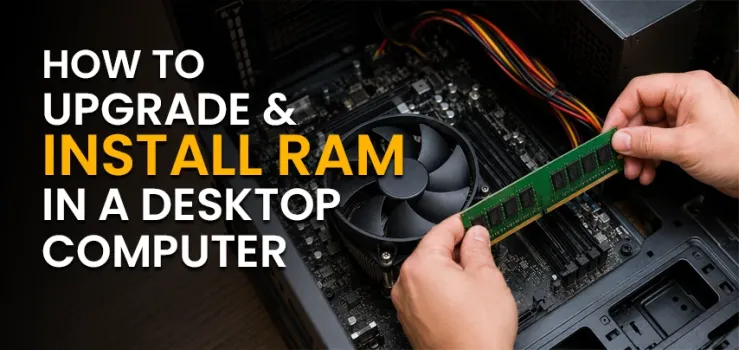
Your PC isn't slow because it's old. It's slow because it's starving for RAM.
Upgrading and installing RAM (Random Access Memory) is one of the simplest ways to boost your computer's performance.
How to install RAM in a desktop computer is the most effective upgrade you can do. In just 10–20 minutes, you can boost speed, reduce lag, and improve multitasking without changing your CPU or GPU.
A RAM upgrade is the single fastest, cheapest, and most impactful hardware upgrade you can do on a desktop computer, and you can do it yourself in under 20 minutes. No technical background needed. No special tools. Just the right RAM and the guide.
This step-by-step desktop RAM upgrade guide covers everything, from choosing the right stick to verifying it's running in Windows.
What You Need Before You Start
Before you buy anything or open your case, spend 5 minutes on preparation.
This saves you from buying the wrong RAM or damaging what you already have.
Tools you'll need:
A Phillips-head screwdriver (#2 size)
An anti-static wrist strap (strongly recommended, more on this below)
Your new RAM sticks
10 minutes of patience
How to Check What RAM Your PC Currently Has
You need to know your current RAM before upgrading.
Here's the fastest way:
On Windows 11 / Windows 10:
Press Windows + R, type dxdiag, and hit Enter
Under the System tab, look for Memory — this shows your total RAM
For more details, open Task Manager → Performance → Memory
This shows: total capacity, speed (MHz), slots used, and form factor
Even better, use CPU-Z (free tool):
Download CPU-Z from cpuid.com (free, trusted)
Click the Memory tab → shows type (DDR4/DDR5), speed, and channel mode
Click the SPD tab → shows what's physically in each slot
This tells you exactly what you have and how many slots are free. Write this down before you go shopping.
How to Know Which RAM Is Compatible with Your PC
RAM compatibility depends on three things:
1. Your motherboard's supported RAM type
Check your motherboard manual or manufacturer's website. It will say something like: "Supports DDR4 3200MHz" or "Supports DDR5 up to 6000MHz." You cannot put DDR5 in a DDR4 motherboard; the notch is physically different.
2. Maximum supported capacity
Every motherboard has a RAM ceiling. A budget B450 board might max out at 64GB. A Z790 might support 192GB. Check your motherboard specs.
3. Speed support
If your board supports DDR4-3200 and you buy DDR4-3600, the RAM will run at 3200MHz (the board's maximum). You won't break anything — it just won't run at full advertised speed unless you enable XMP/EXPO in BIOS.
Quick tip: Visit Eerna.com.bd and search for your motherboard model. The product listings clearly show compatible RAM types, speeds, and capacities.
How to Choose the Right RAM for Your Desktop
DDR4 vs DDR5, Which Should You Buy?
This is the #1 question in 2026, and the answer depends on your platform:
Bottom line:
If your PC uses Intel 10th/11th/12th Gen or AMD Ryzen 5000 or older → you need DDR4
If you have Intel 13th/14th Gen or AMD Ryzen 7000 series → you need DDR5
You cannot mix DDR4 and DDR5 — physically impossible
For most Bangladeshi users upgrading an existing PC in 2026, DDR4 is still the right choice; it's widely available at Eerna.com.bd, affordable, and performs excellently for gaming and everyday work.
How Much RAM Do You Actually Need?
Here's the breakdown for how much RAM you need for different use cases:
16GB is the new minimum for gaming in Bangladesh in 2026. Games like GTA VI, Cyberpunk 2077, and newer AAA titles regularly exceed 8GB RAM usage. If you're currently on 8GB and games stutter, this is why.
RAM Speed (MHz) - Does It Actually Matter?
Yes, but with important context.
For general desktop use and gaming, the real-world difference between DDR4-3200 and DDR4-3600 is around 2–5%. The bigger and more noticeable jump is going from DDR4-2133 (what budget OEM PCs often ship with) to DDR4-3200.
For AMD Ryzen CPUs specifically, RAM speed matters more than on Intel. Ryzen's Infinity Fabric runs at half the RAM speed, so DDR4-3600 (running at a perfect 1:1 ratio) is the sweet spot for Ryzen 5000 series processors.
Buy the fastest RAM your motherboard officially supports. Don't pay a premium for extreme speeds unless you have a specific reason to do so.
Single Stick vs Dual Channel - What's the Difference?
Dual-channel RAM means running two identical sticks in paired slots, which effectively doubles your RAM's memory bandwidth.
Real-world impact:
Gaming: 10–25% better frame rates in CPU-limited scenarios
Content creation: Noticeably faster rendering and export times
General desktop: Snappier multitasking and faster app switching
Always buy in matched pairs if possible. Two 8GB sticks (16GB total) will always outperform one 16GB single stick and cost the same.
If you're adding RAM to an existing single stick, try to buy the exact same brand, model, and speed as your current stick. Mismatched sticks can sometimes cause instability. Learning how to install dual-channel RAM correctly is one of the most important steps in this guide.
Browsing for a matched RAM kit? Eerna.com.bd stocks a wide selection of dual-channel RAM kits across DDR4 and DDR5, all clearly labeled by capacity, speed, and compatibility.
Best RAM Brands Available in Bangladesh
These are the most reliable RAM brands with consistent availability and genuine warranty support, all available at Eerna.com.bd:
Every RAM brand listed above comes with lifetime warranty support when purchased through Eerna.com.bd, so your upgrade is protected long after installation day.
Prices vary by configuration and stock levels. For up-to-date RAM prices in Bangladesh 2026, browse Eerna's full RAM collection updated regularly with DDR4 and DDR5 options across all major brands with genuine warranty coverage.
Step-by-Step: How to Install RAM in a Desktop Computer
Follow this simple and safe step-by-step process to install RAM correctly, even if you are a beginner. Each step is important to avoid errors and ensure your PC runs smoothly after the upgrade.
Follow each step in order. Don't skip the preparation steps; they protect both you and your hardware.
Step 1 - Power Off and Unplug Your PC
This seems obvious, but it must be done correctly:
Shut down Windows completely, not sleep or hibernate
Flip the power supply switch to OFF (the switch on the back of your PC)
Unplug the power cable from the wall, not just from the PC
Press the power button once after unplugging. This drains residual electricity from capacitors
Why unplug from the wall? Your PSU can still deliver standby power (5V) to the motherboard even when the PC is "off." Working with live standby power risks damaging your RAM or motherboard.
Step 2 - Ground Yourself (Prevent Static Damage)
Static electricity is invisible and silent, and it can permanently destroy RAM, CPUs, and motherboards in an instant.
How to install RAM without static damage:
Best method: Wear an anti-static wrist strap clipped to a metal part of your PC case
Acceptable method: Touch a large unpainted metal surface (the PC case frame, a metal door hinge, a steel table) before handling any components, and repeat every few minutes
Never work on carpet or while wearing wool/polyester clothing in dry conditions
Anti-static wrist straps are available online. It's the cheapest insurance you can buy for a BDT 15,000+ RAM upgrade.
Step 3 - Open the Case and Locate the RAM Slots
Remove the left side panel of your PC case (usually 2 thumbscrews at the back)
Set the panel aside safely
Look for the motherboard, the large green or black circuit board on the left wall of the case
Find the RAM slots, they're long, thin slots (about 13cm) near the CPU cooler, usually in a group of 2 or 4
What you'll see:
2-slot motherboards (common on budget/mATX boards): slots labeled A1, B1
4-slot motherboards (common on ATX boards): slots labeled A1, A2, B1, B2
Note the retention clips at each end of the slot; these lock the RAM in place. Push them outward (away from the slot) before inserting RAM.
Step 4 - Remove Old RAM (If Replacing)
If you're replacing old RAM (not adding to empty slots):
Push down on both retention clips simultaneously, and the RAM stick will pop up slightly
Grip the RAM stick by its edges; never touch the gold contacts or the chips
Pull it straight up, no side-to-side rocking needed
Store old RAM in an anti-static bag if you're keeping it
If you're adding RAM to empty slots alongside existing RAM, skip this step.
Step 5 - Identify the Correct Slot Configuration
This is where most beginners make mistakes. Getting this wrong means running in single-channel mode instead of dual-channel, and losing up to 25% performance without even knowing it.
For a 4-slot motherboard with 2 RAM sticks:
Your motherboard manual will show the correct slots. The general rule for most boards:
Intel boards (most common): Install in slots A2 and B2 (second and fourth slots, counting from the CPU)
AMD boards: Same rule applies for most - A2 and B2
Always check your motherboard manual's RAM population diagram. It's usually also printed directly on the motherboard PCB near the slots themselves.
For a 2-slot motherboard with 2 RAM sticks: Both slots, simple.
Adding a single stick to an existing single stick: Match the slot pattern recommended in the manual. If your existing stick is in A2, put the new one in B2.
Step 6 - Insert the New RAM Stick
This is the moment. Here's how to do it correctly:
Hold the RAM stick by its edges; never touch the gold contacts along the bottom
Orient the stick correctly, and look at the notch on the bottom of the RAM. It must align with the key in the slot. RAM is keyed so it can only go in one way; never force it in the wrong direction
Align the stick over the slot, making sure both ends line up with the slot ends
Press down firmly and evenly with both thumbs - apply steady, even pressure along the entire length of the stick
You will hear and feel a firm click from both retention clips snapping into place.
If you don't hear the click, the RAM is not fully seated. Press harder, RAM requires more force than most people expect.
A properly seated stick takes around 15–20 lbs of pressure.
Visually confirm: both retention clips are fully locked, and the gold contacts are not visible above the slot
Important: A partially seated RAM stick is the #1 cause of "PC won't boot after RAM install." The fix is almost always just pressing harder until you hear both clips click into place.
Step 7 - Close the Case and Power On
Replace the side panel and tighten the thumbscrews
Reconnect the power cable to the wall
Flip the PSU switch back to ON
Press the power button
Your PC may take slightly longer to POST (the initial startup screen) the first time after adding RAM; this is completely normal.
The system is detecting and configuring the new memory.
Step 8 - Verify RAM Is Detected in BIOS and Windows
Check in BIOS first:
During startup, press Delete or F2 (varies by motherboard brand) to enter BIOS
Look for memory information on the main page; it should show your new total RAM and speed
If the speed shows lower than your RAM's rated speed (e.g., 2133MHz instead of 3200MHz), enable XMP (Intel) or EXPO (AMD) in BIOS to run at rated speed
Save and exit BIOS
Check in Windows:
Press Windows + R, type msinfo32, press Enter
Under System Summary, look for Installed Physical Memory (RAM), it should show your new total
Open Task Manager → Performance → Memory
Confirm the speed matches your RAM's rated speed (after enabling XMP/EXPO)
Confirm it shows 2 slots used for dual-channel; if it shows 1 slot used with 16GB, something is wrong
Always enable XMP/EXPO; this is not overclocking.
It simply runs your RAM at the speed it was manufactured and sold for. Without it, a DDR4-3200 kit from Eerna.com.bd runs at just 2133MHz by default. Always enable this in the BIOS after every RAM installation.
Common Problems After Installing RAM (And How to Fix Them)
Even if you follow every step correctly, small issues can still happen after a RAM upgrade. But most of the problems are easy to fix if you know what to check first.
PC Won't Boot After RAM Installation - What to Do
This is the most common issue and almost always has a simple fix.
Fix in this order:
Re-seat the RAM - power off, unplug, open the case, push the RAM stick down firmly until both clips click. This solves the problem 80% of the time
Try one stick at a time - If you installed two sticks, test each individually to isolate a potentially faulty stick
Try different slots - Remove and try in alternate slots (A1/B1 instead of A2/B2)
Check for bent CPU socket pins - If excessive pressure was applied near the CPU area, visually inspect for damage
Clear CMOS - Locate the CMOS jumper on your motherboard or remove the CMOS battery for 30 seconds to reset BIOS settings.
This clears any memory configuration blocking the boot
RAM Not Showing Full Capacity in Windows
You installed 32GB, but Windows only shows 16GB? Here are the causes:
32-bit Windows is installed - 32-bit Windows cannot use more than 4GB RAM. Check: Settings → System → About → System type. If it says "32-bit operating system," you need to reinstall 64-bit Windows
Maximum memory is capped in Windows - press Windows + R, type msconfig, go to Boot → Advanced Options, check if "Maximum memory" is ticked and set to a lower value. Untick it and restart
One stick is not fully seated - Open the case and firmly re-seat both sticks until both clips click
PC Keeps Crashing After RAM Upgrade
Random crashes, blue screens, or freezes after a RAM upgrade usually mean:
Incompatible RAM - Check your motherboard's QVL (Qualified Vendor List) for confirmed compatible models. All RAM sold through Eerna.com.bd includes compatibility information on the product listing
XMP/EXPO instability - Some RAM kits are unstable at their rated XMP speeds on certain boards. Try running at one step lower (e.g., 3000MHz instead of 3200MHz)
Mixed RAM issues - Mismatched sticks from different kits can cause instability. Matched kits purchased together are always safer
Faulty RAM stick - Run Windows Memory Diagnostic (search in Start Menu) or the free tool MemTest86 overnight to test for hardware-level errors
BIOS Not Detecting New RAM
If BIOS shows less RAM than installed or doesn't detect a stick at all:
Power off completely and firmly re-seat the RAM
Confirm you're using the correct slots per your motherboard's manual
Update your motherboard BIOS; newer BIOS versions often add support for newer RAM kits, especially DDR5
Test the RAM in a different slot, a specific slot may be faulty
Test a known-working stick in the same slot to determine whether the issue is the slot or the RAM stick itself
Is Upgrading RAM Worth It? - Real Performance Gains
Yes, almost always, especially if you're running under 16GB in 2026.
Here's what you can realistically expect:
Going from 8GB to 16GB:
Gaming: Eliminates stuttering in memory-hungry games. Frame rates improve 15- 40% in titles like Fortnite, Warzone, and GTA V at high settings
Multitasking: Chrome with 20 tabs + Discord + a game open simultaneously, no more slowdowns
Work: Faster file loading, snappier app switching, smoother overall experience
Going from 16GB to 32GB:
Gaming: Marginal improvement for most games in 2026, primarily future-proofing rather than immediate gain
Video editing in Premiere Pro / DaVinci Resolve: Significant difference, timeline scrubbing becomes smooth, and export times drop noticeably
Running virtual machines or Docker containers: Night and day difference in performance
Going from single-channel to dual-channel (same total RAM):
Converting one 16GB stick to two 8GB sticks: 10–20% performance gain at minimal extra cost
RAM Upgrade Cost in Bangladesh - Is It Worth Doing Yourself?
In 2026, a RAM upgrade is the most cost-effective way to fix a slow PC or laptop.
As modern apps and AI tools now use more memory, moving to 16GB or 32GB has become the standard for a smooth experience in Bangladesh.
Whether you are a student in Dhaka multitasking across 50 browser tabs or a gamer chasing higher frame rates, moving to 16GB or 32GB is the most immediate performance boost you can buy.
2026 RAM Pricing Snapshot -
**Prices vary by brand and stock. Check Eerna's RAM section for current live pricing.
Should you install it yourself?
Yes! RAM installation requires no soldering, no advanced tools, and no special knowledge beyond what's in this guide.
The risk is near-zero if you follow the steps perfectly.
A technician at a local PC shop will charge BDT 300–800 (approx.) for an installation that takes under 5 minutes.
After reading this guide, you can do it yourself in 20 minutes and put that money toward a better RAM kit instead.
Ready to upgrade? Browse Kingston Fury, Corsair Vengeance, G.Skill Ripjaws, TeamGroup T-Force, and Crucial RAM, all with current Bangladesh pricing and genuine warranty, at Eerna.com.bd
Final Thoughts - How to Install RAM in a Desktop Computer
Upgrading RAM is one of the best value-for-money hardware upgrades you can make to a desktop PC in 2026, especially in Bangladesh, where DDR4 prices have dropped significantly and quality brands are readily available.
Check compatibility, buy the right kit, ground yourself, seat the RAM firmly until both clips click, enable XMP or EXPO in BIOS, and verify in Windows. That's it.
If you're still running 8GB in 2026, you're handicapping your PC for no good reason. For BDT 3,500–5,000, you can double your memory with a genuine Kingston Fury or TeamGroup kit and make your system feel completely new again.
Ready to upgrade? Find DDR4 and DDR5 RAM from Kingston Fury, Corsair Vengeance, G.Skill Ripjaws, TeamGroup T-Force, and Crucial, all with Bangladesh pricing, genuine warranty, and fast delivery, at Eerna.com.bd.
Some Common FAQs on How to Install RAM in a Desktop Computer
01. Can I add more RAM to my desktop without removing the old one?
Yes, if you have empty RAM slots available. Most desktop motherboards have 2 or 4 slots. If you currently have one 8GB stick and one empty slot, you can add another stick without removing anything. The key is matching the new stick to the existing one as closely as possible, same speed, same capacity, ideally the same brand and model, to ensure stable dual-channel operation. Eerna.com.bd lists compatible RAM options by brand and spec to make matching easy.
02. How do I know if my RAM is DDR4 or DDR5?
The easiest way is to open CPU-Z (free download), click the Memory tab, and it will clearly show DDR4 or DDR5. Alternatively, check your motherboard manual; it will state which DDR generation is supported. Physically, DDR4 and DDR5 look nearly identical but have different notch positions, making them physically non-interchangeable.
03. Is it safe to install RAM yourself?
Yes, RAM is the safest component to install yourself on a desktop PC. Unlike CPUs or GPUs, RAM requires no thermal paste, no mounting brackets, and no delicate connectors beyond the slot itself. The main risk is static damage, which is fully preventable with an anti-static wrist strap available at Eerna.com.bd. Millions of people install their own RAM successfully every year.
04. Why is my PC not booting after RAM installation?
In 90% of cases, the RAM is not fully seated in the slot. Power off, unplug, open the case, and push both sticks down firmly until you hear a definitive click from both retention clips. If that doesn't resolve it, try each stick individually, try different slots, or clear the CMOS by removing the motherboard battery for 30 seconds. See the troubleshooting section above for the complete checklist.
05. Can I mix 8GB and 16GB RAM sticks?
Technically yes, most modern motherboards support asymmetric dual-channel (also called flex mode). A mix of 8GB and 16GB runs in dual-channel for the matched 8GB portion and single-channel for the remaining 8GB. It works, but a matched pair — two 8GB or two 16GB sticks — always delivers better performance and stability. If your budget allows, always buy a matched kit. Eerna stocks matched dual-channel kits from Kingston, Corsair, G.Skill, and TeamGroup at Eerna.com.bd.
06. How much does RAM cost in Bangladesh in 2026?
DDR4 16GB kits (2×8GB) are available from BDT 3,500–5,500 depending on brand. DDR5 starts from around BDT 7,000 for a 16GB kit. Budget-friendly options like Crucial and TeamGroup are on the lower end; premium brands like Corsair Vengeance and G.Skill Ripjaws cost more. For real-time pricing and stock availability across all brands, visit Eerna.com.bd.
07. Will upgrading RAM make my PC faster?
Yes, if RAM is your bottleneck. If you're running 8GB and your PC slows down with multiple apps open, a RAM upgrade will make a very noticeable difference. If you already have 16GB and your PC is still slow, the bottleneck is likely your CPU, GPU, or storage drive instead. The best way to confirm: open Task Manager → Performance → Memory and check if memory usage is consistently above 80%. If yes, upgrade. If not, investigate other components first.




-330x240.webp)



Comments
There are no comments for this Article.